

Claude Connectors = Second Brain
No bs, only the ones that actually worked for me


Look, try openin ChatGPT or Claude right now and ask it to write your next client email. Go ahead, I’ll wait.
What comes back will be smooth, sharp, maybe it’ll add EM dashes here and there to make it seem “more polished”. It’ll be confident and without a comma out of place. And also, completely useless, because it has no idea who the client is, it knows nothing about their company, or what you promised them last Tuesday on the call. It wrote a lovely email for a person who basically doesn’t exist.
That right there is the moment most people quietly decide AI is super overhyped and useless as long as it’s not deeply integrated into their business, and I cannot blame them honestly.
But think about it for a second: you asked the most capable tool you’ve ever touched for help with your actual work, and it handed you a fortune cookie.
Here is what is really going, and it took me, for some reason, embarrassingly long to see it.
That AI LLM model isn’t simply dumb, as you might think. It’s just blind. Imagine that it has read and elaborated what feels like the entire internet, and it knows literally nothing about you. Not your inbox. Not your clients. Not the doc you’ve had open for 3 days. Every new chat starts from absolute zero, like a brilliant new hire who somehow forgets the entire company overnight and shows up needing the full tour again every single morning.
You’re just reexplaining over and over again. That’s not how a system like this should be used. The potential is huge but people are using it only at 5%.
So you adapt without even noticing you’re doing it. Before you can ask for anything good, you paste the client call, the client history, your brand voice, some numbers from the last call. You type an entire page of explanation to your AI agent today and tomorrow you do the whole briefing again, from scratch, because there’s no memory.
That isn’t using AI. That’s being its assistant who hands the right context over and over again.
I lived like this for months myself. I’d ask for content ideas for my X account last year and I’d get “5 tips to boost your productivity,” because how would it possibly know I write about calling out AI hype? It was guessing at my life from the outside and silently making things up.
I thought this could not go on anymore and I thought: what if these models would have the right context every single time I ask them?
Then I found this awesome thing called connectors, and the guessing basically stopped.
Here’s a super simple explanation.
A connector is just a small switch that lets the AI look inside one of your real apps.
You want your AI to craft high quality posts based on some docs you have, you can connect Notion to ChatGPT or Claude and it automatically sees the necessary pages and folders.
You want to know what email updates you have for the day or you need to send a quick email to your colleague asking for a remote meeting, you connect Gmail.
Maybe you use google docs or spreadsheets for handling your client call summaries, you connect your Google Drive and the proposal creates automatically, you review the pdf and send it through the Gmail connector directly to the client. Easy peasy, right?
Basically, instead of you describing your work to it, it just reads the actual thing. And when you allow it, it writes back. The real note, the real reply, the real row in the real file. No copying, no pasting, no morning briefing.
The first time I connected my Notion and typed “what’s still sitting in my Substack content database that needs review” and it just listed them. I laughed out loud because first of all it felt like magic and because it was so obviously how this should have worked from day one.
Now the part nobody selling you this will say out loud.
I got excited and connected a lot of tools. 14 apps in a single Saturday. Notion, Gmail, Google Cal, some file thing I haven’t opened since, Granola, etc. By the next weekend I had deleted 9 of them.
Because more connections is not more power. The internet insists otherwise of course. Every other post screams “the 10 connectors you NEED” or the “15 ultimate automation tools that will boost your biz 50x”. That makes me laugh and reflect at the same time because people are actually integrating more and more tools every day thinking that is the solution for them being more productive.
I do deeply believe that less is more. Your day should be all about spending more time on the work you actually care and really want to do, and stop wasting time on doing the boring, manual stuff.
So for the connectors, you’re supposed to use only the ones that actually make your day-to-day less stressful, easier to manage and with which you can get your work done faster.
For example: why do you need to spend 3 hours crafting a proposal while you can do it in less than 10 minutes by using a google drive connector and the client calls you did for the past 2 weeks. Imagine, you could spend that remaining time to outreach to other clients instead, focus on sales or service delivery.
Coming back to why less is more, I have 2 main reasons to connect less stuff.
First, every connected app quietly hands the AI a menu of everything it can do, before you’ve said a word. A couple of those is helpful. Fourteen is a pile it has to dig through to get to your actual question.
Second, every connection is a door into your stuff, and doors swing both ways. If the AI reads a sketchy webpage or a file with sneaky instructions buried in it, a connector you forgot you even turned on can get used in a way you never meant. The people getting real value out of this are not the ones with the most connections. They’re the ones with the fewest and that are working on purpose.
So I kept 5 of them: Notion, Google Drive, Google Calendar, Fathom and Apify. Because that’s the room I actually live in all day. My calendar, my client notes, my half-finished article drafts I come up with when I’m feeling creative.
Did connecting it make me 2-3x times faster? I’d say more yes than no. The thing is now I’m focused on the actual core tasks of my work, not preparing onboarding and proposal docs for 3 hours straight. Anyone who tells you it skyrockets your productivity is probably selling you a course. The honest win is smaller and better than that. I basically stopped being the guy that does it all. The thing that used to be twenty open tabs and a lot of frantic clicking is now one sentence in a chat with a running Claude skill.
If you want to try it, don’t overthink it. Open your AI app’s settings, find the section called Connectors, and pick the single app where your real work lives. Click connect, log in when it asks, approve. That is the entire setup.
Look, I’ll make it even easier for you, I’ll guide you through it with the example of the Claude app:
Open up the Claude desktop or web app and find the “Customize” element on the left
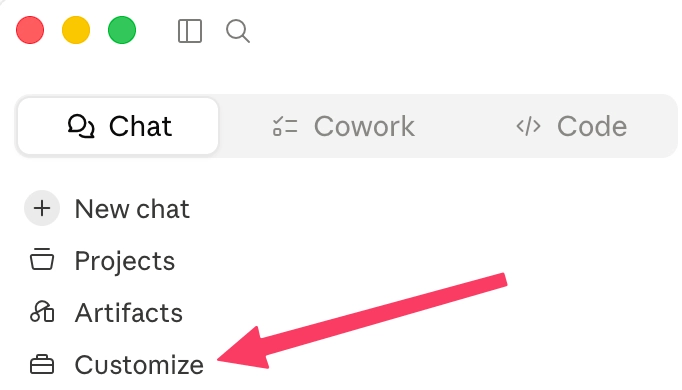
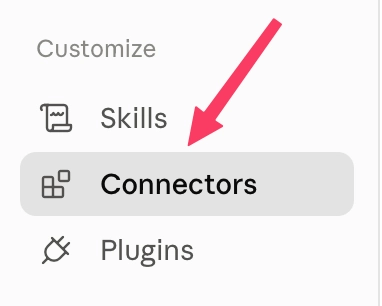
Click on “Connectors” here:
You click on the plus button. Yes, I’m testing other connectors right now (n8n for automations and Lucid for charts):
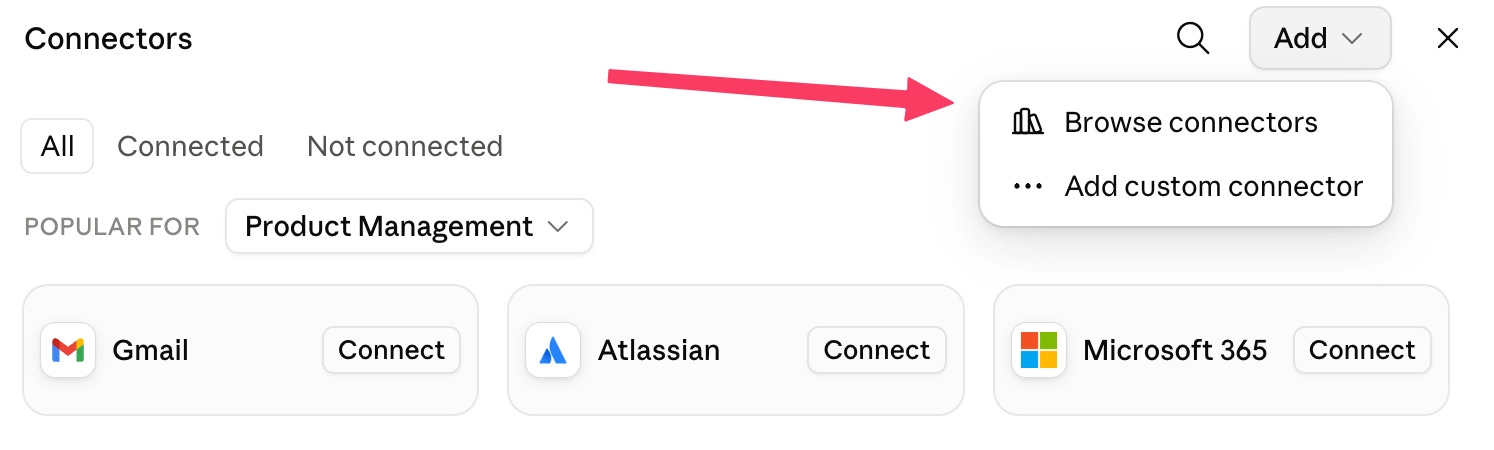
Finally search for the connectors you need
3 easy wins you can steal today
Connecting one app is nice. Here’s what to actually do with it. Three things I run almost every day, the exact prompt, and roughly what each one saves me.
Win 1: Draft your content without briefing anyone (Notion)
Connect Notion with the method I showed above, then open a new session in Claude Cowork (cowork > normal claude) and type something like:
Create three assets in my Notion workspace:

## 1. Content Framework
Build a reference document that defines:
- My ICP (Ideal Customer Profile)
- My target audience
- Their pains, goals, objections, and desires
- Core content pillars
- Brand positioning
- Key messaging
- Attention psychology principles
- Hooks that fit my audience
- CTA framework
- Topics to avoid
- Content constraints and rules

This document should become the source of truth for every piece of content.

## 2. Voice Guide
Analyze my existing content, including my Substack Notes, and create a writing guide that captures:
- My writing style
- Sentence structure
- Tone
- Vocabulary
- Common phrases and filler words
- Formatting patterns
- Hook style
- Storytelling style
- CTA style
- Emoji usage (if any)
- Things I consistently do
- Things I never do

Include examples from my previous posts and Substack Notes so future content sounds like me rather than generic AI.

## 3. Content Database
Create a content database with the following properties:
- Title
- Platform
- Status (Draft, To Review, Scheduled, Published)
- Published Date
- Published URL
- Content Type
- Topic
- Content Pillar
- Draft
- Notes
- Source Material
- Last Updated

After creating the Content Framework and Voice Guide, populate the Content Database with an initial week of content (7 Substack Notes). Each note should:
- Be aligned with my ICP and content pillars
- Match my writing voice
- Explore a different idea or angle
- Be saved with the status "Draft"
- Be ready for review and publishing
It pulls from my real notes and style, so the draft sounds like me, not AI. It saves me about 3 hours every week by eliminating the need to re-explain what I write about.
Win 2: Turn a call into a follow-up before you forget (Fathom)
Connect Fathom (free video call + notes transcriber) to Claude.
Right after a client call:
Pull my last call with [client] from Fathom, list the action items, and draft a follow-up I can drop in an email.
The summary and the message write themselves while it’s all still fresh. Saves me around 30 minutes per call, and I stopped letting follow-ups slip entirely.
Win 3: Clear your work inbox in one pass (Slack)
First thing in the morning:
Show me the messages from the last 24 hours that actually need a reply, and draft a response for each that I can edit.
You go from staring at 40 unread to editing 6 drafts. Saves me 30 to 45 minutes a day, plus a chunk of low-grade dread.
Notice the pattern. You’re not learning new software. You’re just telling the AI to go look at the thing it can finally see.
Two things actually worth remembering. The AI only ever sees what your own account can already see, so if it can’t find something, you’ve connected the wrong account, not hit a broken app. And don’t let it act unsupervised. When it offers to send or delete something, it should ask you first. Read that little prompt before you click yes. Looking at your stuff is harmless. Sending an email as you is a different thing entirely.
That’s it. One app, wired to the place your work lives. Sit with that for a week before you even think about a second.
You don’t need a wall of glowing connections you’ll install once and never use again. You need to stop briefing a stranger every single morning.
Connect the one that ends that kind of monotonous work and simply ignore the rest.
One quick last one, because it actually pays for itself.
I used to spend about 3 hours on a single client proposal. Digging through call notes, copying numbers, formatting, second-guessing every line.
Now it takes me under 10 minutes. The Google Drive connector reads the call notes from the last two weeks, drafts the proposal in my own template, I review it, and it goes out the door.
That’s not a productivity flex. It’s 2 hours and 50 minutes back per proposal, time I now spend on outreach and actually delivering the work. Across a busy week that’s the whole difference between chasing clients and serving them.
The result is simple. The setup behind it is the part worth paying for. Below the line is the exact Claude skill and the prompts I use to turn two weeks of messy call notes into a finished, sent proposal in under 10 minutes. Copy it, plug in your own template, run it today.
The 10-minute proposal skill
Here’s the whole thing. By the end you’ll have a repeatable setup where you say one sentence and a client-ready proposal comes out, built from your real calls, in your real format.
I can also share a template I use.
Step 1: Put your raw material in one place.
Drop your call notes, transcripts, or Fathom summaries into a single Google Drive folder for each client. The AI is only as good as what it can reach, so give it the real notes, not your memory of them.
Step 2: Save a proposal it can copy.
Take your best past proposal, the one that actually closed, and keep it in that same Drive as your template. This is what makes the output sound like you instead of generic. No template, generic proposal. Good template, YOUR proposal.
Step 3: Run the prompt.
Paste this, swapping the brackets for your own:
You are my proposal writer.
1. Read my call notes with [CLIENT] from the last 2 weeks in [DRIVE FOLDER].
2. Read [MY TEMPLATE PROPOSAL] and match its structure, tone, and section order exactly.
3. Draft a proposal for [CLIENT] using their actual words, goals, and numbers from the calls.
4. List any assumptions you had to make at the very top so I can fix them.
Do not invent pricing or scope I never mentioned. If something important is missing, ask me instead of guessing.
Those last two lines, flag your assumptions and don’t invent, are the difference between a draft you trust and one you have to fact-check word by word.
Step 4: Review, then send.
Read the assumptions list first, fix those, skim the rest. Then: “Looks good. Export it as a PDF and draft a short, warm email to [client] with it attached, referencing our last call.” The Gmail connector writes the email, you hit send. Keep send on ask-first, like we said earlier.
Step 5: Make it one sentence next time.
Once it works, save that first prompt as a reusable Claude skill, or just a saved prompt, called “Proposal from calls.” Now the whole job is one line: “run my proposal skill for [client].” That’s the sentence I mentioned at the very top of this article.
What to check: a good run quotes the client’s own language back to them and follows your template’s sections. If it reads generic, your template wasn’t specific enough or the notes were too thin. Fix the input, not the prompt.
That’s the system. Call notes in, sent proposal out, about ten minutes, and it sounds like you wrote it on a good day.
Before I let you go, I wanted to say thank you for arriving this far and I wanted to gift you quick little guide on how to master Claude Skills. Click on this link for more: Resource - Use Claude Skills like a Pro
Talk soon,
Ilya